








A slow internet connection can be incredibly frustrating, especially when you’re trying to work from home, attend online meetings, stream movies, play games, or browse the web. Many people assume they need to upgrade their internet plan, but in many cases, simple adjustments can dramatically improve internet performance without spending extra money.
If you’ve ever wondered why your downloads are slow, your videos keep buffering, or your WiFi struggles in certain rooms, this guide is for you.
In this article, we’ll explain how to increase internet speed at home using 20 proven tips that actually work.
Why Is Your Internet Slow?
Before applying any fixes, it’s important to understand what causes slow internet speeds.
Common reasons include:
- Poor router placement
- Outdated router hardware
- Too many connected devices
- WiFi interference
- Background downloads
- ISP network congestion
- Outdated firmware
- Weak WiFi signals
- Malware infections
- Incorrect router settings
Fortunately, many of these issues can be fixed quickly.
1. Restart Your Router Regularly
One of the simplest ways to improve internet performance is restarting your router.
Over time, routers accumulate temporary errors and memory issues that can slow down performance.
How to do it:
- Turn off the router.
- Wait 30 seconds.
- Turn it back on.
- Allow it to reconnect completely.
Many users notice an immediate speed improvement.
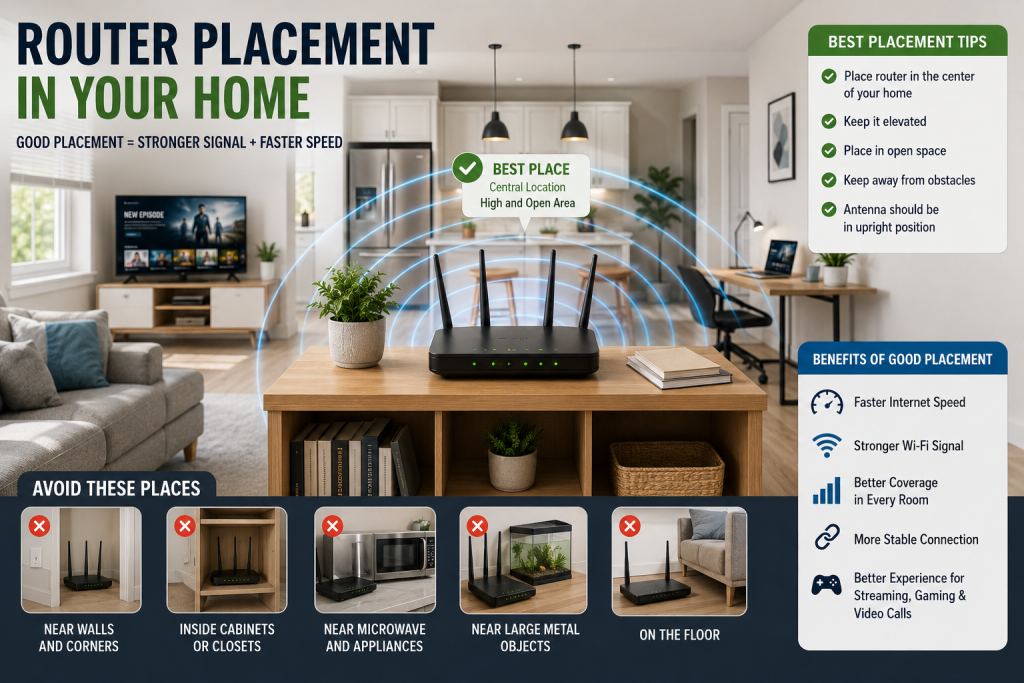
2. Place Your Router in a Central Location
Router placement significantly affects WiFi performance.
A centrally located router distributes signals more evenly throughout your home.
Best locations:
- Living room
- Central hallway
- Open area
Avoid:
- Basements
- Closets
- Behind furniture
- Near metal objects
3. Elevate Your Router
WiFi signals spread outward and downward.
Placing your router higher often improves coverage.
Good options include:
- Shelves
- Wall mounts
- High cabinets
Avoid placing it directly on the floor.
4. Keep the Router Away from Interference
Many household devices interfere with WiFi signals.
Common sources include:
- Microwave ovens
- Cordless phones
- Bluetooth devices
- Baby monitors
- Wireless speakers
Maintain several feet of separation whenever possible.
5. Upgrade to a Modern Router
If your router is more than five years old, it may be limiting your internet speed.
Consider upgrading to:
- WiFi 6 routers
- WiFi 6E routers
- WiFi 7 routers
Modern routers provide:
- Better range
- Faster speeds
- Improved device management
- Enhanced security
6. Update Router Firmware
Manufacturers regularly release updates that improve performance and security.
Check your router’s admin panel for firmware updates.
Benefits include:
- Better stability
- Faster performance
- Improved security
- Bug fixes
7. Use the 5GHz WiFi Band
Most modern routers offer:
2.4GHz
- Longer range
- Lower speed
5GHz
- Faster speed
- Lower interference
For streaming and gaming, 5GHz is usually the better choice.
8. Disconnect Unused Devices
Every connected device consumes bandwidth.
Review your connected devices list and remove:
- Old smartphones
- Unused tablets
- Smart gadgets you no longer use
This frees bandwidth for active devices.
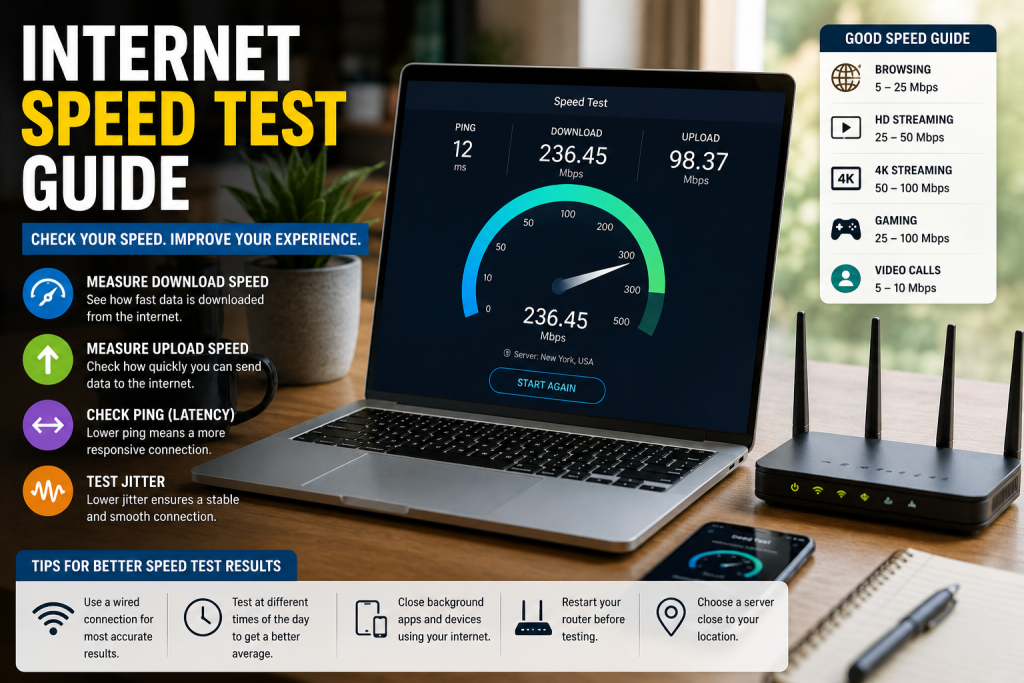
9. Run an Internet Speed Test
A speed test helps identify whether the issue comes from your WiFi network or your internet provider.
Test at different times of day.
Record:
- Download speed
- Upload speed
- Ping
Compare results with your ISP’s advertised speeds.
10. Use Ethernet for Important Devices
Wired connections are generally faster and more stable than WiFi.
Use Ethernet for:
- Desktop computers
- Gaming consoles
- Smart TVs
- Workstations
This reduces wireless congestion and improves performance.
11. Change Your WiFi Channel
In apartments and crowded neighborhoods, nearby networks often use the same WiFi channel.
Switching to a less crowded channel can improve performance.
Many modern routers automatically select the best channel.
12. Upgrade Your Internet Plan
If your household has many users, your current package may simply be too slow.
Typical recommendations:
- 25 Mbps for basic browsing
- 100 Mbps for families
- 300+ Mbps for heavy streaming
- 500+ Mbps for gamers and large households
13. Install a WiFi Extender
Large homes often have weak signal areas.
WiFi extenders help improve coverage in:
- Upstairs rooms
- Garages
- Basements
- Outdoor spaces
14. Consider a Mesh WiFi System
For larger homes, mesh systems often outperform traditional routers.
Benefits include:
- Whole-home coverage
- Seamless roaming
- Reduced dead zones
- Improved reliability
15. Reduce Background Downloads
Background activities can consume significant bandwidth.
Check for:
- Software updates
- Cloud backups
- File synchronization
- Streaming downloads
Pause unnecessary activities during important tasks.
16. Scan for Malware
Malware can secretly consume internet bandwidth.
Use trusted security software to scan your devices regularly.
Signs include:
- Slow internet
- Unexpected downloads
- High network usage
17. Limit Streaming Quality
4K streaming uses far more bandwidth than HD.
If your network struggles:
- Switch to 1080p
- Limit simultaneous streams
- Pause unnecessary video playback
This can improve overall network performance.
18. Enable Quality of Service (QoS)
Many routers offer QoS settings.
QoS prioritizes important traffic such as:
- Video calls
- Gaming
- Streaming
- Work applications
This helps prevent lag during busy periods.
19. Replace Damaged Ethernet Cables
Old or damaged cables can reduce network performance.
Use modern cables such as:
- Cat5e
- Cat6
- Cat6a
Replacing faulty cables often resolves hidden speed issues.
20. Contact Your Internet Service Provider
If you’ve tried everything and speeds remain slow, the problem may be with your ISP.
Ask them to:
- Test your connection
- Check line quality
- Replace faulty equipment
- Verify service availability
Sometimes a simple line repair can dramatically improve performance.
Final Thoughts
Improving internet speed doesn’t always require expensive upgrades. In many cases, optimizing router placement, reducing interference, updating equipment, and managing connected devices can significantly improve performance.
Start with the free solutions first, such as restarting your router, relocating it to a central location, and removing unnecessary devices. If those don’t solve the problem, consider upgrading your router, installing a mesh system, or reviewing your internet plan.
By following these 20 proven tips, you can enjoy faster browsing, smoother streaming, better gaming, and a more reliable online experience throughout your home.
Frequently Asked Questions About Router Placement
Restart your router, place it in a central location, disconnect unused devices, update firmware, and reduce WiFi interference.
Yes. Poor placement can create weak signal areas and reduce overall WiFi performance.
Yes. The 5GHz band generally offers faster speeds and less interference, although it has a shorter range.
If your router is more than five years old, upgrading to a WiFi 6 or WiFi 7 model can significantly improve speed and coverage.
For small coverage problems, an extender may work. For larger homes, mesh WiFi systems usually provide better overall performance.
Walls, floors, furniture, and distance from the router can weaken WiFi signals, creating dead zones.
Many experts recommend restarting your router once every few weeks to maintain optimal performance.
You can reposition the router, install a WiFi extender, use a mesh WiFi system, or connect devices using Ethernet cables.
Most streaming services recommend at least 25 Mbps for smooth 4K video playback.


