








Few things are more frustrating than having a fast internet connection but poor WiFi coverage in certain parts of your home. You may enjoy excellent speeds in the living room but struggle with weak signals in bedrooms, upstairs offices, garages, basements, or outdoor areas.
These weak-signal areas are commonly known as WiFi dead zones.
Fortunately, WiFi dead zones can often be eliminated without upgrading your internet package. By understanding what causes them and applying the right solutions, you can enjoy strong, reliable wireless coverage throughout your home.
In this guide, you’ll learn what WiFi dead zones are, why they occur, and the most effective ways to fix them.
What Is a WiFi Dead Zone?
A WiFi dead zone is an area where your wireless signal becomes weak, unstable, or completely unavailable.
Common symptoms include:
- Slow internet speeds
- Buffering videos
- Dropped Zoom or Teams calls
- Weak WiFi signal bars
- Gaming lag
- Smart home devices disconnecting
Dead zones often occur in rooms that are far away from the router or separated by obstacles that block wireless signals.
What Causes WiFi Dead Zones?
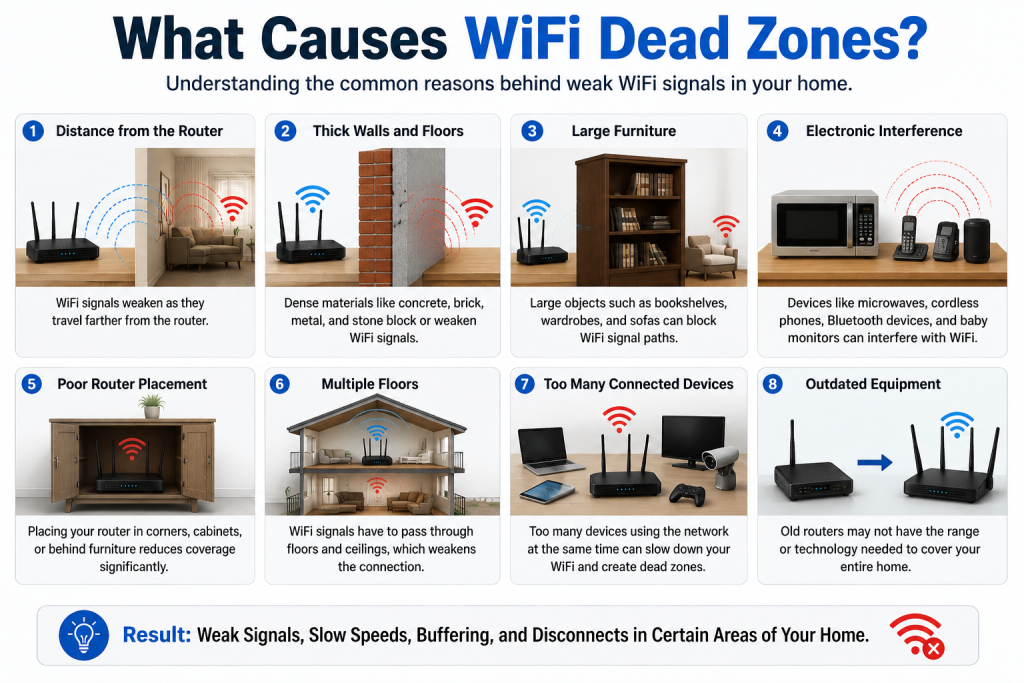
Several factors can reduce WiFi coverage.
Distance from the Router
WiFi signals weaken as they travel farther from the router.
The farther a device is from the router, the weaker the signal becomes.
Thick Walls and Floors
Building materials significantly affect WiFi performance.
Materials that commonly block signals include:
- Concrete
- Brick
- Stone
- Metal
- Plaster walls
Multi-story homes often experience coverage issues because signals must travel through floors.
Large Furniture
Large objects can weaken or block WiFi signals.
Examples include:
- Bookshelves
- Wardrobes
- Sofas
- Filing cabinets
Electronic Interference
Several household devices can interfere with WiFi networks.
Common culprits include:
- Microwaves
- Bluetooth devices
- Cordless phones
- Wireless speakers
- Baby monitors
Poor Router Placement
One of the most common causes of dead zones is poor router positioning.
Placing a router inside a cabinet, behind furniture, or in a corner room can significantly reduce coverage.
How to Identify WiFi Dead Zones
Before fixing the problem, identify where weak coverage exists.
Use Your Smartphone
Walk through your home while monitoring your WiFi signal strength.
Look for areas where:
- Signal bars drop significantly
- Videos buffer
- Websites load slowly
- Calls disconnect
Perform Speed Tests
Run internet speed tests in different rooms.
Compare results and identify areas where speeds drop dramatically.
Use WiFi Analyzer Apps
Many free apps can display signal strength and coverage throughout your home.
These tools can help pinpoint problem areas more accurately.
1. Move Your Router to a Better Location
Router placement has a major impact on WiFi coverage.
For best results:
- Place the router near the center of your home
- Keep it elevated on a shelf or wall
- Avoid placing it on the floor
- Keep it away from large furniture
A better location often eliminates dead zones immediately.
2. Position Router Antennas Correctly
If your router has external antennas:
- Keep one antenna vertical
- Position another horizontally
This helps distribute signals more effectively throughout different levels of your home.
3. Switch to the 5GHz or 2.4GHz Band
Modern routers offer multiple frequency bands.
2.4GHz
- Longer range
- Better wall penetration
- Slower speeds
5GHz
- Faster speeds
- Less interference
- Shorter range
In some dead zones, switching to 2.4GHz can improve connectivity.
4. Upgrade to a Modern Router
Older routers often struggle to cover large homes.
Modern WiFi 6 and WiFi 7 routers provide:
- Better range
- Faster speeds
- Improved device management
- Enhanced coverage
If your router is several years old, upgrading can make a significant difference.
5. Install a WiFi Extender
WiFi extenders help rebroadcast signals into weak coverage areas.
They are most effective when:
- Positioned halfway between the router and the dead zone
- Used to cover one or two weak areas
Extenders are an affordable solution for many homes.
6. Upgrade to a Mesh WiFi System
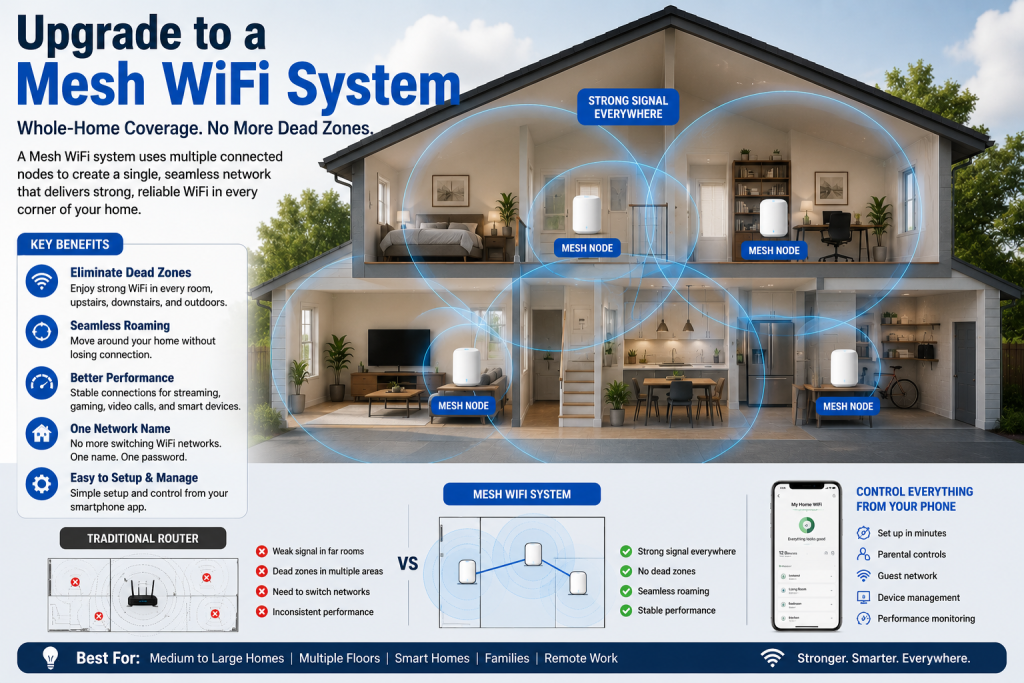
For large homes, Mesh WiFi is often the best solution.
Mesh systems use multiple nodes to create a seamless wireless network.
Benefits include:
- Whole-home coverage
- Reduced dead zones
- Seamless roaming
- Better streaming performance
- Improved gaming experiences
7. Reduce Wireless Interference
Keep your router away from:
- Microwaves
- Cordless phones
- Bluetooth transmitters
- Smart appliances
Reducing interference can significantly improve signal strength.
8. Change Your WiFi Channel
In apartment buildings and densely populated neighborhoods, neighboring networks often compete for the same channels.
Switching to a less congested channel can improve performance.
Many modern routers automatically select the best channel.
9. Use Ethernet for Stationary Devices
Whenever possible, connect devices using Ethernet cables.
Ideal candidates include:
- Gaming PCs
- Smart TVs
- Desktop computers
- Network storage devices
This reduces wireless traffic and improves overall network performance.
10. Upgrade Your Internet Equipment
Sometimes the problem is not your internet plan but outdated equipment.
Consider upgrading:
- Router
- Modem
- Network switches
- Ethernet cables
Modern hardware often provides better performance and coverage.
Best Solutions for Different Home Sizes
Small Apartments
Recommended solutions:
- Better router placement
- Router upgrade
- Channel optimization
Medium Homes
Recommended solutions:
- WiFi extenders
- Router upgrades
- Better antenna positioning
Large Homes
Recommended solutions:
- Mesh WiFi systems
- Multiple access points
- Professional network planning
When Should You Upgrade to Mesh WiFi?
Mesh WiFi is worth considering if:
- Your home exceeds 2,500 square feet
- You have multiple floors
- Several rooms experience weak coverage
- You use many smart home devices
- Multiple family members stream and game simultaneously
Final Thoughts
WiFi dead zones are one of the most common causes of poor internet performance at home. Fortunately, they can often be fixed without upgrading your internet package.
Start by improving router placement, reducing interference, and testing signal strength throughout your home. If dead zones persist, consider installing a WiFi extender or upgrading to a Mesh WiFi system.
With the right setup, you can eliminate weak coverage areas and enjoy fast, reliable internet throughout every room in your home.
Frequently Asked Questions
WiFi dead zones are typically caused by distance, walls, floors, furniture, interference, and poor router placement.
Use your smartphone, speed tests, or WiFi analyzer apps to identify weak coverage areas.
Yes, in many cases. Extenders work well for isolated weak-signal areas.
For larger homes and multiple dead zones, Mesh WiFi usually provides better coverage and performance.
Absolutely. Router placement is one of the easiest and most effective ways to improve coverage.
Yes. Concrete, brick, metal, and stone can significantly weaken wireless signals.
If your router is more than 4–5 years old, upgrading to WiFi 6 or WiFi 7 can improve both speed and coverage.
Distance, walls, interference, and router placement can cause signal strength to vary throughout a home.


