







Few technology problems are more frustrating than an internet connection that constantly disconnects.
One minute you’re attending an important Zoom meeting, streaming a movie, playing an online game, or working from home, and the next minute your connection suddenly drops.
If you’ve ever asked yourself, “Why does my internet keep disconnecting?”, you’re not alone.
Internet disconnections can happen for many reasons, including weak WiFi signals, outdated equipment, ISP issues, network congestion, interference, and incorrect router settings.
The good news is that most connection problems can be fixed without calling a technician.
In this guide, we’ll explain the most common causes of internet disconnects and show you exactly how to fix them.
Why Does My Internet Keep Disconnecting?
Your internet connection relies on several components working together:
- Internet Service Provider (ISP)
- Modem
- Router
- WiFi network
- Connected devices
If any part of this chain develops a problem, you may experience frequent disconnections.
Signs of an Unstable Internet Connection
Common symptoms include:
- WiFi disconnects randomly
- Video calls freeze or drop
- Online games disconnect
- Streaming services buffer repeatedly
- Websites stop loading temporarily
- Smart home devices go offline
- Slow reconnections after disconnecting
If you experience these issues regularly, one of the following causes is likely responsible.
1. Weak WiFi Signal
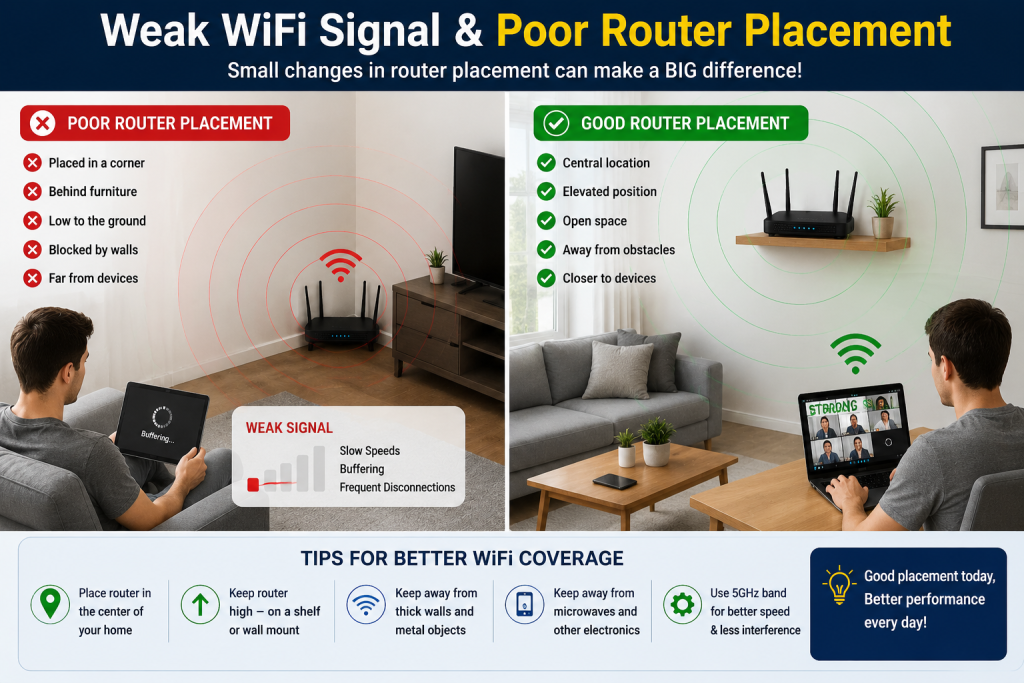
A weak wireless signal is one of the most common causes of disconnections.
The farther you move from your router, the weaker the signal becomes.
How to Fix It
✅ Move closer to the router
✅ Place the router centrally in your home
✅ Remove physical obstacles
✅ Upgrade to a stronger router
2. Poor Router Placement
Many people place their router in a corner room, inside a cabinet, or behind furniture.
This can significantly reduce WiFi coverage.
Best Router Placement
- Near the center of your home
- Elevated on a shelf
- Away from walls and metal objects
- In an open space
Proper router placement often solves connection problems immediately.
3. Too Many Connected Devices
Modern households may have dozens of devices connected simultaneously.
Examples include:
- Smartphones
- Smart TVs
- Laptops
- Gaming consoles
- Security cameras
- Smart speakers
When too many devices compete for bandwidth, connections may become unstable.
Solution
Disconnect devices that are not currently being used.
4. Router Overheating
Routers run continuously and can overheat if ventilation is poor.
Symptoms include:
- Random disconnects
- Slow speeds
- Router restarts
Solution
Keep your router:
- Well ventilated
- Away from direct sunlight
- Free from dust buildup
5. Outdated Router Firmware
Router manufacturers regularly release firmware updates that improve performance and security.
Outdated firmware may cause:
- Network instability
- Security vulnerabilities
- Frequent disconnects
Solution
Log into your router and install the latest firmware updates.
6. ISP Service Problems
Sometimes the problem isn’t inside your home.
Your ISP may be experiencing:
- Network maintenance
- Service outages
- Equipment faults
- Line degradation
Solution
Contact your ISP and ask if outages or service issues have been reported in your area.
7. WiFi Interference
Wireless interference can weaken your connection.
Common sources include:
- Microwave ovens
- Bluetooth devices
- Baby monitors
- Cordless phones
- Neighboring WiFi networks
Solution
Move your router away from electronic devices and switch to a less crowded WiFi channel.
8. Outdated Router Hardware
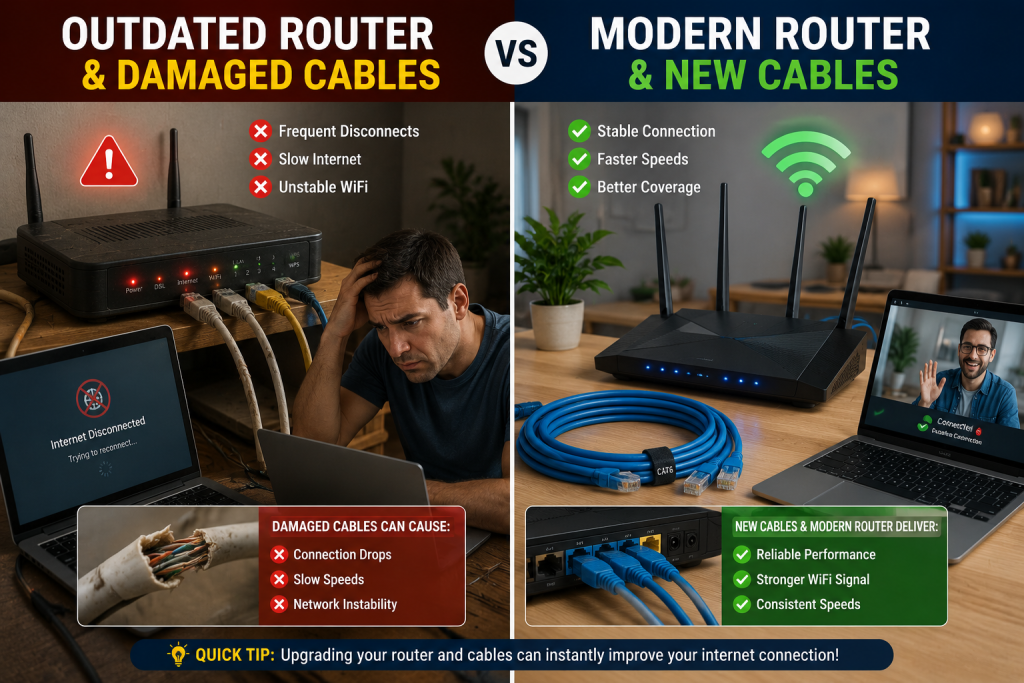
Older routers often struggle with modern internet demands.
If your router is more than five years old, it may not provide reliable performance.
Consider Upgrading To:
- WiFi 6 routers
- WiFi 6E routers
- WiFi 7 routers
Modern routers offer better stability, coverage, and speed.
9. Damaged Cables
Loose or damaged Ethernet cables can cause intermittent connectivity problems.
Check:
- Router cables
- Modem cables
- Wall connections
Replace any damaged cables immediately.
10. DNS Problems
Sometimes websites appear disconnected when DNS servers fail to respond.
Solution
Switch to public DNS providers such as:
- Google DNS (8.8.8.8)
- Cloudflare DNS (1.1.1.1)
This often improves connection reliability.
11. Malware or Viruses
Malicious software can consume network resources and disrupt internet performance.
Warning Signs
- Unexpected downloads
- High network activity
- Sluggish performance
Solution
Run a full malware scan using trusted antivirus software.
12. Automatic Router Reboots
Some routers are configured to restart automatically.
Users may mistake these scheduled reboots for internet problems.
Solution
Review your router settings and disable unnecessary automatic restarts.
13. Network Congestion During Peak Hours
Internet speeds may decrease during busy evening periods when many users are online.
Typical Peak Hours
- 6 PM to 10 PM
Solution
Run speed tests throughout the day and compare results.
If congestion is severe, contact your ISP.
14. Faulty Modem
Your modem may be causing connection drops.
Signs include:
- Frequent loss of internet
- Blinking warning lights
- Repeated reconnecting
Solution
Restart the modem and consult your ISP if problems continue.
15. Your Internet Plan Is Too Small
Today’s households use significantly more bandwidth than ever before.
Streaming, gaming, video conferencing, and smart devices all consume internet resources.
Recommended Speeds
- Basic Browsing: 25 Mbps
- Small Families: 100 Mbps
- Heavy Streaming: 300 Mbps+
- Large Households: 500 Mbps+
Upgrading your package may solve persistent issues.
Quick Troubleshooting Checklist
Before calling your ISP, try these steps:
✅ Restart your router and modem
✅ Check WiFi signal strength
✅ Move closer to the router
✅ Disconnect unused devices
✅ Update router firmware
✅ Check cables
✅ Run a speed test
✅ Scan for malware
✅ Verify ISP outages
When Should You Contact Your ISP?
Contact your ISP if:
- Disconnections happen daily
- Speed tests show consistently low speeds
- Your modem frequently loses connection
- Line quality issues are suspected
Many ISP-related problems can only be fixed by the provider.
Final Thoughts
Frequent internet disconnections are usually caused by weak WiFi signals, outdated equipment, interference, router problems, or ISP-related issues.
Start with the simplest fixes first by restarting your router, improving placement, checking cables, and reducing network congestion.
If problems continue, upgrading your router, improving WiFi coverage, or contacting your ISP may be necessary.
By following the troubleshooting steps in this guide, you can enjoy a more reliable internet connection, smoother streaming, better gaming, and uninterrupted video calls.
Frequently Asked Questions
Random WiFi disconnects are often caused by weak signals, interference, outdated routers, or ISP issues.
Restart your router, update firmware, improve router placement, and check for interference.
Yes. Older or faulty routers are one of the most common causes of connection instability.
Peak-hour congestion, ISP maintenance, or scheduled router reboots can cause nighttime disconnects.
If your router is over five years old or frequently disconnects, upgrading may improve reliability.
Yes. Excessive devices can overload older routers and create network instability.
Absolutely. Poor placement often causes weak signals and frequent connection drops.
Yes. Network outages, line faults, and congestion can all cause internet interruptions.


