





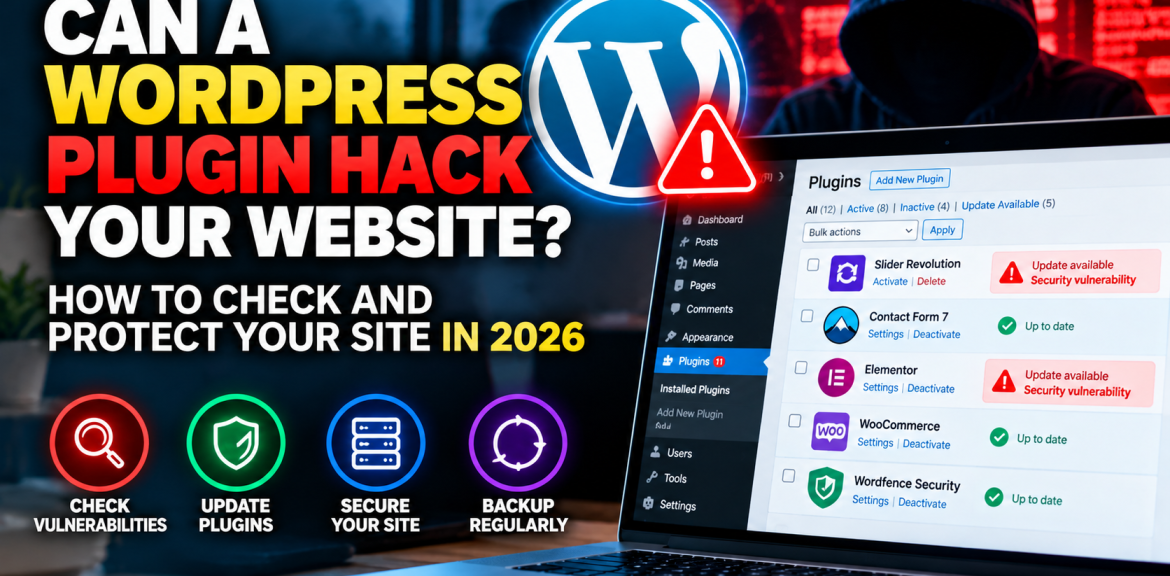

Can a WordPress plugin hack your website? Yes. A security flaw in an installed plugin can sometimes let attackers access data, create unauthorized accounts, change website content or upload malicious files. But an outdated plugin is not automatically hacked, and a website error is not proof of an attack. The right response is to identify the exact plugin, version, vulnerability and signs of compromise before taking action.
If you manage a business website, start with the 15-minute WordPress plugin security audit below. It explains what to check first, how to prioritize risks and when to involve your hosting provider or a security professional.
Why WordPress plugin security matters in 2026
Plugins extend WordPress with forms, SEO tools, payment systems, page builders and many other features. Each plugin also adds code that needs to be maintained. A vulnerability may affect only certain versions, configurations or user roles, so a security headline should never be treated as proof that every installation is exposed.
In its State of WordPress Security in 2026 report, Patchstack recorded 11,334 newly disclosed WordPress ecosystem vulnerabilities during 2025, with 91% reported in plugins. The report also says 46% had no patch available at disclosure. These figures describe reported vulnerabilities in Patchstack’s research, not the percentage of websites compromised.
WordPress’s official hardening guide recommends keeping plugins updated, removing plugins you do not use, choosing trusted sources and maintaining recoverable backups.
The 15-minute WordPress plugin security audit
This is a practical first-pass audit, not a guarantee that the site is malware-free. If you already suspect a breach, preserve evidence and avoid making uncontrolled changes to a live store or business website.
Minutes 0–3: List every installed plugin
- Sign in to your WordPress administrator dashboard.
- Open Plugins → Installed Plugins.
- Record each plugin’s name, version, update status and whether it is active.
- Check inactive plugins too: inactive code may still remain on the server, so remove unnecessary plugins rather than simply forgetting them.
Can’t access wp-admin? Ask your host or developer to inspect the installed plugin directory and server logs. Do not blindly delete folders if the site is already failing.
Minutes 3–6: Check vulnerability advisories, not just update badges
Search the exact plugin name and installed version in reputable vulnerability databases, such as the Patchstack vulnerability database, or your security scanner’s advisory details. Verify the affected version range, whether a fixed release exists and whether the flaw requires authentication. A plugin can be fully updated yet still have a newly disclosed, unpatched vulnerability.
Minutes 6–9: Check for warning signs
- New administrator accounts you did not create.
- Unexpected redirects, spam pages or modified homepage content.
- Unexplained changes to payment, form or notification settings.
- Security alerts from the host, scanner or search engine.
- Unfamiliar scheduled tasks, modified files or suspicious login activity.
Important: Slow loading, a 500 error, a white screen or an expired SSL certificate can have ordinary technical causes. They are not, by themselves, evidence of hacking.
Minutes 9–12: Confirm backups and recovery access
Verify that you have a recent backup of both website files and database, ideally stored outside the same hosting account. Check whether the backup can be restored and whether you have working host-level access. A backup that has never been tested is not a reliable recovery plan.
Minutes 12–15: Assign a response priority
| Finding | Priority | Recommended next action |
|---|---|---|
| Known actively exploited vulnerability affecting your installed version | Urgent | Restrict exposure, apply a verified patch or temporarily disable the affected feature with professional support; inspect for compromise. |
| Known vulnerability; patched release available | High | Take a verified backup, update promptly, then test the site and review logs. |
| Known vulnerability; no patch available | High | Assess exposure, disable or replace the plugin where feasible; ask the host/security provider about temporary mitigation. |
| Outdated plugin with no confirmed advisory | Planned promptly | Check compatibility and release notes; back up and update through a controlled process. |
| Unused or abandoned plugin | Maintenance | Confirm it is unnecessary, then delete it and its remaining integrations safely. |
How can you tell whether a plugin is vulnerable?
A reliable advisory normally names the plugin, affected version range, vulnerability type, severity, disclosure date and any patched version. Check the details rather than relying on a dramatic social-media post. A vulnerability may require a logged-in editor account, a specific plugin setting or a particular integration. Those conditions matter when deciding how urgently your website is exposed.
Do not confuse three different conditions: an outdated plugin needs maintenance; a vulnerable plugin has a confirmed security weakness affecting its version; a compromised website has evidence of unauthorized activity. One condition does not automatically prove the others.
What should you do if a vulnerable plugin has no update?
- Confirm the advisory applies to your exact installed version.
- Check whether the affected feature can be safely disabled or the plugin can be temporarily removed.
- Review the plugin developer’s official security notice and any mitigation guidance.
- Ask your hosting or security provider whether a relevant virtual patch or application firewall rule is available. A generic firewall does not block every plugin vulnerability.
- Inspect logs and administrator accounts for evidence of earlier exploitation.
- Replace abandoned software with a maintained alternative when practical.
For a critical business website, test changes on staging when possible. Removing a payment, booking or forms plugin without planning can disrupt revenue or customer communications.
Should you turn on automatic plugin updates?
Automatic updates can reduce the time your site runs an older vulnerable version. WordPress supports per-plugin automatic updates through Plugins → Installed Plugins. However, updates can also cause compatibility problems, especially on heavily customized websites. Maintain off-site backups, monitor update notifications and test important functionality after changes. For critical integrations, establish a controlled update process with prompt security exceptions.
See the official WordPress automatic updates guide for the available controls and troubleshooting steps.
What if your WordPress website is already behaving strangely?
Start by documenting the symptoms and their timing. A broken plugin update, expired SSL certificate and malware infection require different fixes.
| Symptom | Possible explanation | First check |
|---|---|---|
| White screen after plugin update | PHP error or compatibility issue | Host error logs, recovery mode, recent update history |
| SSL or browser certificate warning | Expired/misconfigured certificate | Certificate validity and host SSL configuration |
| Unknown administrator account | Potential unauthorized access | Account audit, login logs, credential security |
| Visitors redirected to unrelated pages | Possible malicious code or configuration issue | Server logs, integrity scan, redirects and DNS |
| Contact form suddenly stops sending | Plugin conflict, email delivery or configuration | Form settings, SMTP logs and recent updates |
Suspect a real compromise? Use this recovery sequence
- Preserve evidence. Save relevant logs, screenshots and a secure copy of the affected environment before extensive cleanup, where feasible.
- Contain exposure. Contact the hosting provider and consider restricting access or placing the site into a controlled maintenance state if customer data or transactions may be affected.
- Secure access. Reset compromised credentials, revoke unknown sessions and enforce multifactor authentication for administrators.
- Investigate scope. Review files, database, users, plugins, themes, scheduled jobs and hosting accounts. A plugin update alone may not remove an established backdoor.
- Restore safely. Clean or rebuild from trusted software and a known-good backup; then patch the entry point before reopening.
- Monitor and communicate. Watch logs and business functions. If personal data may have been exposed, seek advice on applicable notification obligations.
For suspected compromise involving payments, customer information or multiple sites on the same hosting account, involve a qualified incident-response professional.
A practical WordPress security routine for small businesses
- Daily or automated: Backups, uptime/security alerts and monitoring for high-risk advisories.
- Weekly: Review plugin, theme and core updates; test contact forms, checkout and key pages after changes.
- Monthly: Audit administrator accounts, unused plugins, backup restore readiness and hosting/PHP support status.
- After a critical advisory: Reprioritize immediately rather than waiting for the next routine maintenance day.
For websites managed by an agency, assign a named person to receive vulnerability alerts and approve urgent updates. Security depends as much on responsibility and response time as on which plugin is installed.
Common questions about WordPress plugin vulnerabilities
Can a disabled WordPress plugin still be a security risk?
Potentially. Deactivation usually stops normal plugin execution, but files remain installed and exposure depends on the vulnerability. Delete unused plugins after confirming they are not needed.
Does updating a vulnerable plugin mean my site is safe?
Not necessarily. Updating closes the addressed flaw, but it does not prove that an attacker did not exploit it earlier or that other weaknesses are absent.
Are paid WordPress plugins safer than free plugins?
Price alone does not establish security. Evaluate maintenance history, vendor responsiveness, vulnerability disclosures and update support.
Can a WordPress firewall stop every plugin attack?
No. A web application firewall can reduce exposure to some attacks, but coverage varies by vulnerability and configuration. It should complement patching, access controls and monitoring.
How many plugins are too many?
There is no universal safe number. A small collection of poorly maintained plugins can create more risk than a larger collection of actively maintained ones. Review necessity, quality and update discipline.
Does an expired SSL certificate mean the website has been hacked?
No. An expired SSL certificate is a certificate-management problem and does not, on its own, demonstrate unauthorized access. It should still be fixed promptly because visitors may receive security warnings.
Final takeaway: Check the exact risk before taking action
WordPress plugin security is not about installing one more security plugin and forgetting the problem. It is about knowing what is installed, watching credible advisories, keeping reliable backups, applying updates safely and responding quickly when a real vulnerability affects your site. If a business-critical site shows signs of compromise, treat the incident as more than a routine plugin update.
Related reading: Why Is My Website Not Showing on Google? and Crawled – Currently Not Indexed: What to Fix. Website security, availability and search visibility are related, but each needs its own diagnosis.
Sources and further reading
- Patchstack — State of WordPress Security in 2026 (analysis of 2025 disclosures)
- WordPress — Hardening WordPress
- WordPress — Plugin and theme auto-updates
- WordPress — Manage Plugins
Editorial note: This article provides general security guidance and a practical assessment framework. It does not report an original penetration test or guarantee that a particular website is secure. Review published advisories and platform interfaces before acting.


