





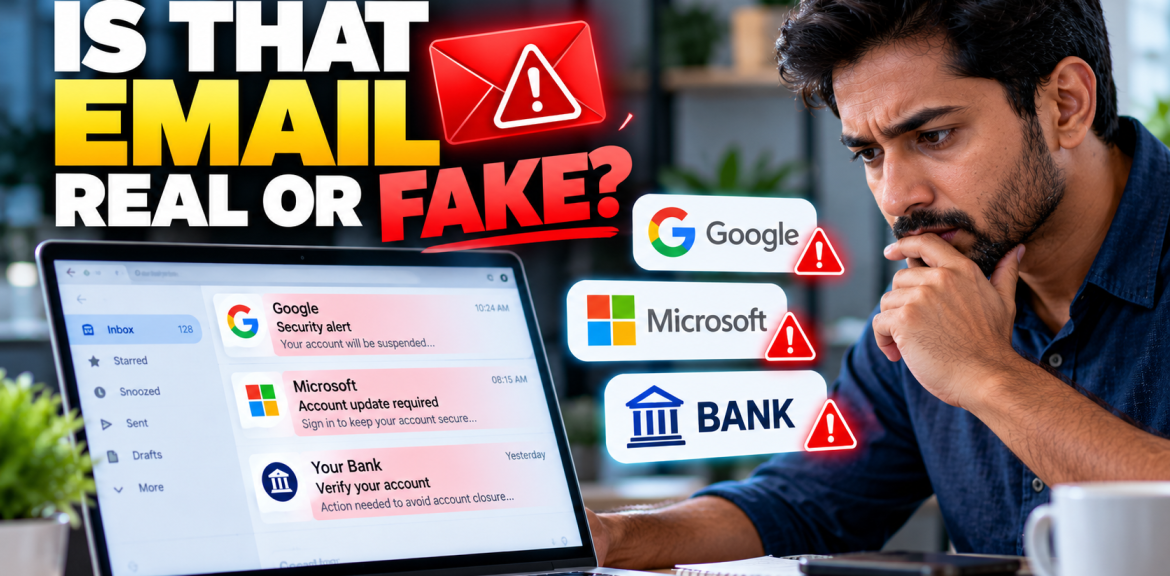

Quick answer: If an email claims to be from Google, Microsoft or your bank, do not trust its logo, display name or urgent wording. Open the company’s app or type its known website address yourself, sign in, and check whether the alert or requested action appears there. If it does not, treat the message as suspicious until you verify it independently.
A fake security alert can look professional, use your name and even appear in a familiar email conversation. The safest question is not “Does this email look real?†but “Can I confirm this request without using anything inside the email?†This guide gives you a practical verification routine, with separate steps for Google, Microsoft and banking messages.
The 60-second test: Is this email genuine?
- Stop. Do not click a button, open an attachment, reply, call a number in the message or scan a QR code.
- Identify the claim. Is it about a login, payment, password reset, suspended account or urgent verification?
- Inspect the sender. Expand the full email address. A recognizable display name is not proof. Watch for extra words, substituted characters and unrelated domains.
- Open the real service separately. Use your saved app, a trusted bookmark or an address you know is correct—not a link from the message.
- Check the account. Look for the same alert, transaction or notification in the account’s official security or activity area. For banking issues, call the number on your card or official statement if needed.
- Decide. If you cannot verify the request, do not act through the email. Report it as phishing and contact the organization through a trusted channel.
Important: Not finding an alert in an app does not prove an email is fraudulent. Some genuine notices are delivered only by email. When in doubt, verify with official support through a separately obtained contact method.
What a fake email can look like in 2026
Phishing is an attempt to persuade someone to reveal credentials, transfer money or open malicious content by impersonating a trusted organization. The warning signs are often about the action requested, not the writing quality. A polished message with perfect grammar can still be a scam.
| Email says | Why to be cautious | Safer next action |
|---|---|---|
| “Unusual sign-in. Verify immediately.†| Could be a real security alert or a credential-stealing link. | Open your account’s security activity page independently. |
| “Your Microsoft account will be closed today.†| Artificial urgency can push you toward a fake sign-in page. | Check Microsoft account activity through the official site. |
| “Your bank transfer is on hold. Confirm your PIN.†| A request for a PIN or password is a major danger signal. | Use the bank’s app or call its verified number. |
| “Open the attached invoice to avoid a penalty.†| Unexpected attachments may contain harmful content. | Verify the invoice through the vendor’s known contact. |
| “Scan this QR code to secure your account.†| QR codes can conceal a destination you cannot inspect easily. | Navigate to the service yourself instead. |
How to check a Google or Gmail security email
- Open a fresh browser tab or the Google app, without clicking the email.
- Go directly to Google Account security notifications or the Security section of your Google Account.
- Review recent security activity and devices. If you see an unfamiliar session, follow Google’s account-security instructions from that trusted page.
- In Gmail, examine the complete sender address and any phishing warning. If suspicious, use the message menu and choose Report phishing.
Google advises users not to enter a Google Account password after following a suspicious email link. A real-looking sender name or familiar logo is not enough to establish authenticity. Google’s official phishing guidance explains these checks.
How to check a Microsoft or Outlook account alert
- Open a separate tab and go to your Microsoft account using a trusted bookmark or the address you already use.
- Review Microsoft account recent activity for unfamiliar sign-ins or security challenges.
- For a work or school account, use your organization’s established Microsoft 365 portal or ask your IT administrator to verify the notice.
- In Outlook, use the Report menu and select Report phishing when available.
Microsoft warns that attackers can spoof a sender address. Outlook’s unverified-sender indicators can be useful, but their absence is not a guarantee of safety. See Microsoft’s official Outlook phishing guide.
How to check a suspicious bank email
Banking messages deserve an extra layer of caution because a single rushed action may expose money or sensitive personal information.
- Do not use the phone number, payment link or QR code supplied in the suspicious email.
- Open your bank’s official mobile app or website using your usual method.
- Check recent transactions and secure messages.
- If a payment, card issue or identity check remains unclear, call the number printed on your bank card or official statement.
- Never provide a PIN, one-time verification code or online-banking password to someone who contacted you unexpectedly.
The US Consumer Financial Protection Bureau advises customers to contact their bank using a number from a different, trusted source when an email or text asks them to verify account information. Read the CFPB guidance.
Why checking the sender address alone is not enough
A suspicious domain is a useful clue, but it is not a complete test. Attackers may imitate brand names, compromise a legitimate mailbox, or use an apparently normal-looking sender. Conversely, some legitimate services send mail through third-party platforms. Email authentication technologies such as SPF, DKIM and DMARC help systems assess whether a sender is authorized, but ordinary readers should not treat a technical “pass†result as proof that a request is safe.
A better rule: Check both the message’s identity and the action it asks you to take. An unexpected request for credentials, payment or software installation should be verified independently even when the email looks convincing.
What if you already clicked the link?
You clicked but entered nothing
Close the page. Do not download or run anything it offers. Keep your browser and device updated. If a file downloaded or you suspect malicious software, run a reputable security scan.
You entered your password
Go to the genuine service independently and change the password immediately. If you reused that password elsewhere, change it on those accounts too. Review active sessions, recovery details and recent account activity; enable multifactor authentication. If you entered a verification code, treat the account as potentially compromised and follow the provider’s recovery guidance.
You shared bank details or sent money
Contact your bank’s fraud department immediately using a verified number. Ask about freezing affected cards or accounts and whether a transfer can be recalled. Keep records of the message and transaction. In the US, IdentityTheft.gov provides personalized recovery steps for identity theft.
How to report the email
- Gmail: Open the message, choose the three-dot menu beside Reply and select Report phishing.
- Outlook: Select the message and use Report > Report phishing where available.
- US readers: Report suspected fraud at ReportFraud.ftc.gov. The FTC also recommends forwarding phishing emails to reportphishing@apwg.org.
- Bank impersonation: Notify your bank through its verified fraud channel.
A practical habit that works better than memorizing scam examples
Imagine receiving a message that says your cloud storage will be deleted in 30 minutes unless you sign in. The logo is correct, the email mentions your name and the button looks familiar. Instead of deciding whether the design is convincing, close the email and open the storage service from your own bookmark. If the account is functioning normally and no matching warning appears, verify through official support before taking any action. This is an illustrative scenario, not a claim about a tested phishing campaign.
The habit to remember is simple: Never let an unexpected email choose the website, phone number or payment route you use to verify it.
Frequently asked questions
Can a phishing email use the real Google or Microsoft logo?
Yes. Logos and brand colors are easy to copy and do not authenticate a message.
Can a fake email have perfect grammar?
Yes. Writing quality is not a reliable safety test. Focus on the sender, the request and independent verification.
Does a padlock or HTTPS mean the linked website is genuine?
No. HTTPS encrypts the connection to a site; it does not prove that the site belongs to the organization it claims to represent.
Is every urgent security email a scam?
No. Real security alerts can be urgent. The safest response is to check your account through a known app or website instead of following the email’s link.
What if the suspicious email came from someone I know?
Their account could be compromised. Contact them through a different, trusted channel before opening unexpected attachments or links.
Should I reply asking whether the email is real?
No. Replying to the suspicious message is not independent verification. Contact the organization through an established official channel.
Final takeaway
When an email appears to be from Google, Microsoft or your bank, the most reliable first step is to verify the claim outside the email. Use the official app, a trusted bookmark or a known phone number. This simple routine helps protect against fake security alerts, account-takeover attempts and payment scams without requiring advanced technical knowledge.
For related guidance, read our articles on AI voice-cloning scams and WhatsApp privacy and usernames.


